
When working with multiple SQL databases, a common need often arises:
to build a single Power Automate flow capable of dynamically querying any of those databases when they share identical schemas.
Imagine a network of pharmacies, each with its own database running the same ERP system on an on-premises server.
The standard way to approach this (and the most common one at first) is to use a switch, with one action for each possible data source, and to create a separate connection reference for each of the servers.
But this doesn’t scale well…

If you have 10, 20, or more databases, the flow becomes unmanageable, and adding a new data source means manually editing the flow every time.
So… did you know it’s possible to dynamically update a connection reference from within Power Automate?
In this guide, I’ll show you how to build a parametrizable and scalable solution using connection references and a helper table. Let’s walk through it step by step!
Before we begin, I’d like to clarify some key concepts—the difference between a Connection and a Connection Reference:
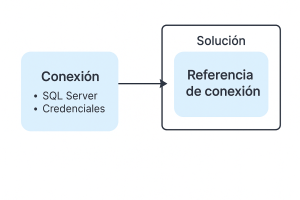
- Connection: This is the actual link to a service or data source (such as SQL Server, SharePoint, etc.) including its credentials and configuration. It’s created from the “Connections” section in Power Apps.
- Connection Reference: This is a component inside a solution that acts as a bridge to a specific connection. It allows you to decouple your flow from the actual connection, making it reusable, exportable, and parameterizable.
Now let’s get started:
STEP 1: Create the Connection Reference
Go to your PowerApps solution and click New → More → Connection Reference.
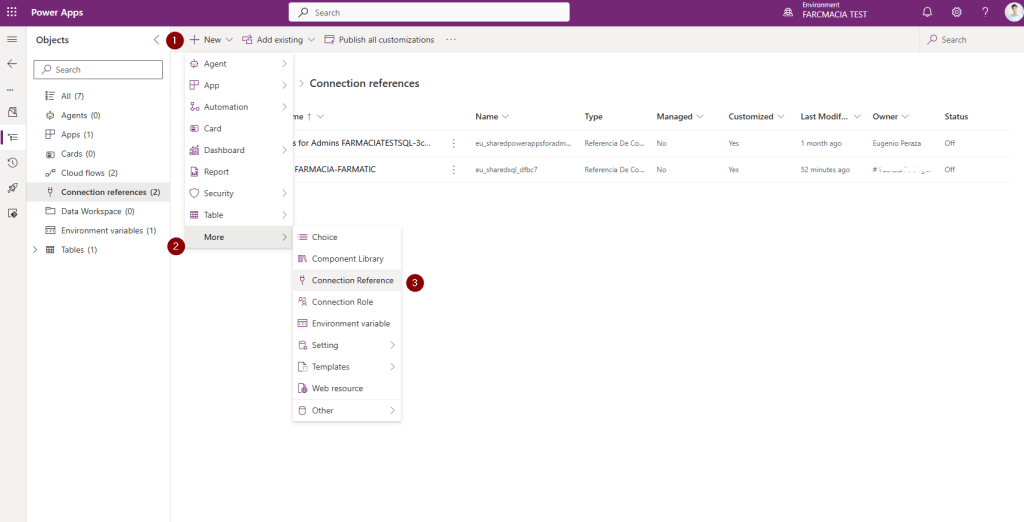
You’ll be able to choose from hundreds of connectors. In my case, I selected SQL Server, chose the gateway, and entered my credentials. Now we have both our connection reference and connection created.
This will be the only connection reference we’ll need from now on.
STEP 2: Create a Configuration Helper Table
In Dataverse or SharePoint (whichever you prefer), create a table named something like “SQL Connections”, with the following columns:
| Connection Id | Pharmacy Id |
| (guid of the connection) | (id of the pharmacy or data source we’ll be quering) |
This will be the table we’ll need to maintain going forward. Every time we want to add a new data source, we’ll have to create a new connection (yes, a connection, not a connection reference) in the environment and link it to a pharmacy as a new record in this table.
In my case, I even built a small PowerApps application called Pharmacy Connections Manager to manage it more easily.

STEP 3: Retrieve the Connections in the Environment
So, how do we get the list of connections in the environment?
For that, we can use a Power Automate connector called Power Platform for Admins, which allows us to access the connections available in the environment along with their current status:

With this flow, we access the existing connections in the environment, filtering by "ConnectionType" = "sqlAuthentication".
The parameters included in the Power Automate flow are:
Action: Get Connections As Admin
Parameter: Environment Name
workflow()?['tags']?['environmentName']Action: Select
Parameter: Map
{
  "ConnectionId": @{item()?['name']},
  "Status": @{item()?['properties']?['statuses']?[0]?['status']},
  "ConnectionName": @{item()?['properties']?['displayName']},
  "ConnectionType": @{item()?['properties']?['connectionParametersSet']?['name']}
}
Now that we have the connections, we can store them in our “SQL Connections” table, so they can be referenced later from the query flow.
STEP 4: Configure the Flow with a Dynamic Connection Reference
1. Create the Power Automate flow inside the solution using your preferred trigger. In my case, I’ll use the HTTP trigger. Through the HTTP request body, we’ll pass the identifier of the pharmacy (data source) we want to query.
2. Add a “Compose” action to store the pharmacy identifier, which we’ll later use to retrieve the corresponding Connection Id.

triggerBody()?['pharmacy_id']3. Add a “List Rows” action using the Dataverse connector to query the configuration helper table and retrieve the corresponding Connection Id.

outputs('GetPharmacyConnectionId')?['body/value']?[0]?['eu_connectionid']4. Now that we have the Connection Id from the environment, we can update the connection reference with that identifier. To do this, Dataverse includes a table called connectionreference. This table lists all the connection references available in the environment and includes a column named Connection Id, which stores the connection currently linked to each reference.

All we need to do is update this field to change the connection linked to the connection reference. To do this, we’ll use the “Update a row” action from the Dataverse connector.

In our case, we store the Connection Reference Id in an environment variable.
parameters('SQLFarmaticConnectionReferenceId (eu_SQLFarmaticConnectionReferenceId)')And we pass the result from the “Compose” action to update the “ConnectionId” field.
outputs('ConnectionId')5. Now that we’ve updated the connection reference, we just need to run the desired SQL query against the database, and we can parameterize the request based on the data source we need. Simply configure the action using the connection reference we created earlier.


 🚀Power Tower
Leave a comment