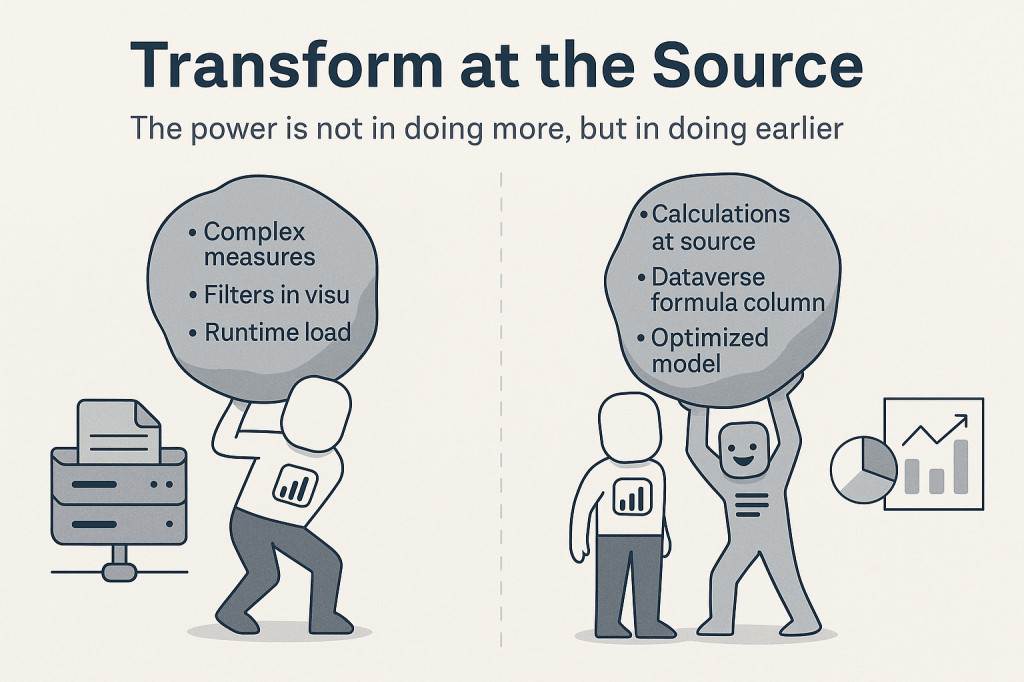
When working with Power BI models, especially in Direct Query Mode, it is common to run into performance issues. One of the most frequent mistakes is offloading too much logic onton Power BI itself, such as creating complex measures that are evaluated at runtime within visuals that involve thousands or even millions of combinations.
In this post, I’ll share a real experience where a matrix visual in Power BI wasn’t loading properly due to the complexity of a measure. Moving that calculation to the data source (Dataverse) led to a significant performance improvement in the report.
Why transform data at the source?
Transforming data at the source, whenever possible, comes with multiple benefits:
- Performance optimization: Calculations are performed where the data lives, instead of being pushed to the Power BI engine.
- Memory savings: Power BI doesn’t have to load or process unnecessary data.
- Scalability: The system can handle higher data volumes without the report crashing.
- Reusability: A calculated field in the source can also be used in other applications (e.g., Power Apps or Power Automate).
Real-World Example: A Matrix that would not load
I was working on a Power BI report connected to Dataverse in DirectQuery mode. One of the One of the requirements was to display a matrix with multiple dimensions and a custom calculation:
Saldo = SUM('diario'[Haber]) - SUM('diario'[Debe])The measure wasn’t even that complex, but due to the data volume and the granularity of the matrix, it became very expensive in terms of computation.
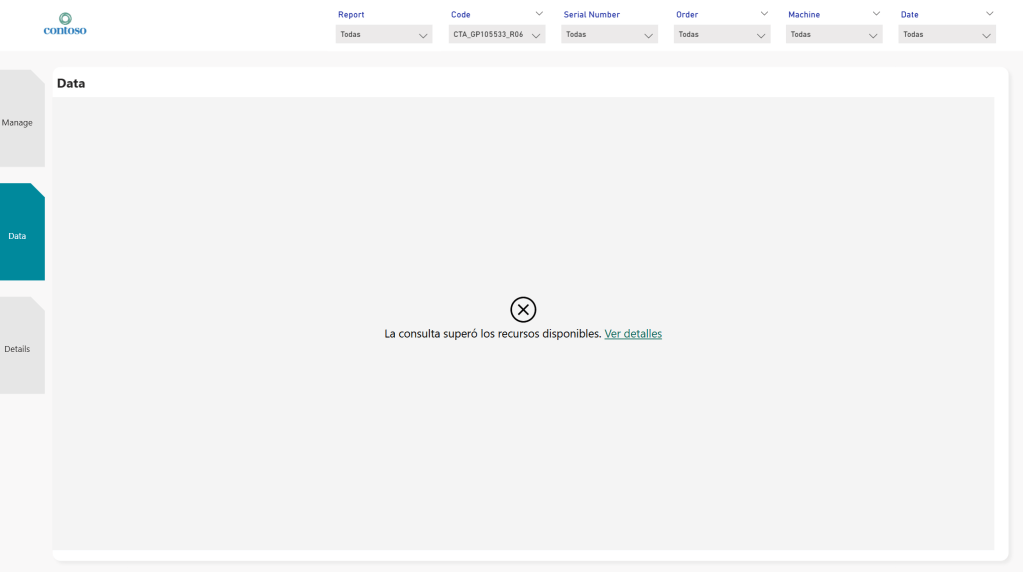
What happened?
- The matrix took several minutes to load (or didn’t load at all)
- Memory consumption skyrocketed
- The user experience was frustrating
The solution: move the calculation to Dataverse
What is a formula column in Dataverse?
Formula columns in Dataverse allow you to define calculations directly on a table using the Power Fx language (the same used in Power Apps). These columns are automatically evaluated based on the values of the current record, with no code or plugins required, and their result can be consumed in Power BI, Power Apps, or Power Automate.
This makes them an ideal tool for pushing business logic to the source, reducing the complexity of your Power BI models and improving performance, especially in DirectQuery scenarios.
You can read more in the official Microsoft documentation: Work with formula columns
Implementation
Creating a formula column in Dataverse is simple and doesn’t require any backend coding. Here’s how you can do it using Power Apps:
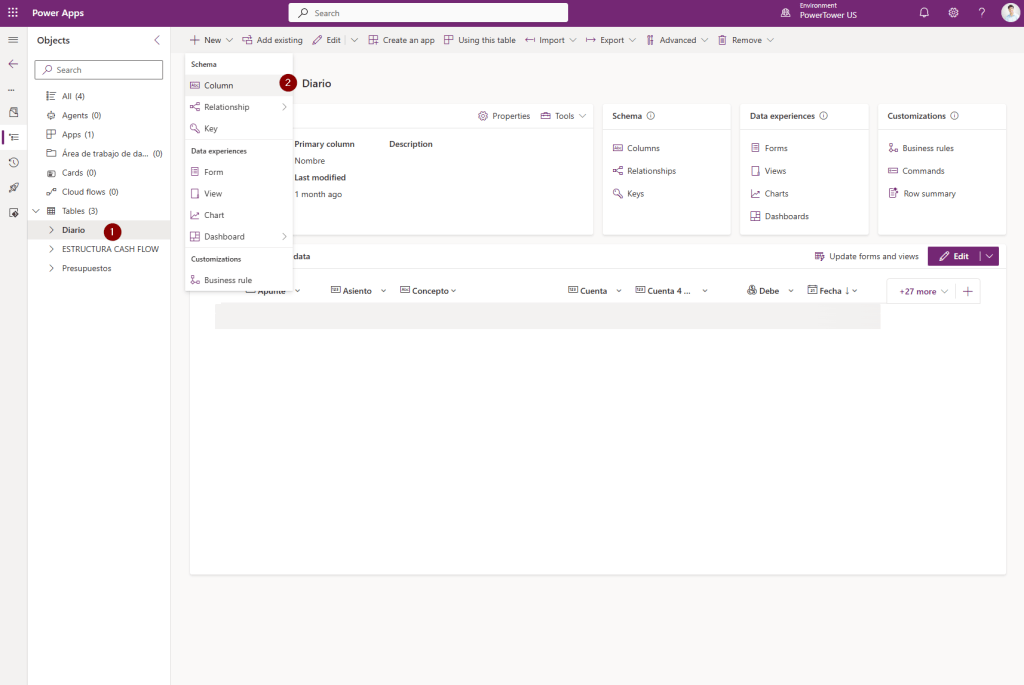
1. Open your table in Dataverse
Go to make.powerapps.com, select the environment where your table is located, and from the left panel, choose the table where you want to add the formula column.
2. Add a new formula column
Inside the table, go to the “Columns” tab and click “Add column”.
3. In the pop-up window
Enter a logical name for your column.
In Data type, select Formula.
The PowerFx formula editor will open.
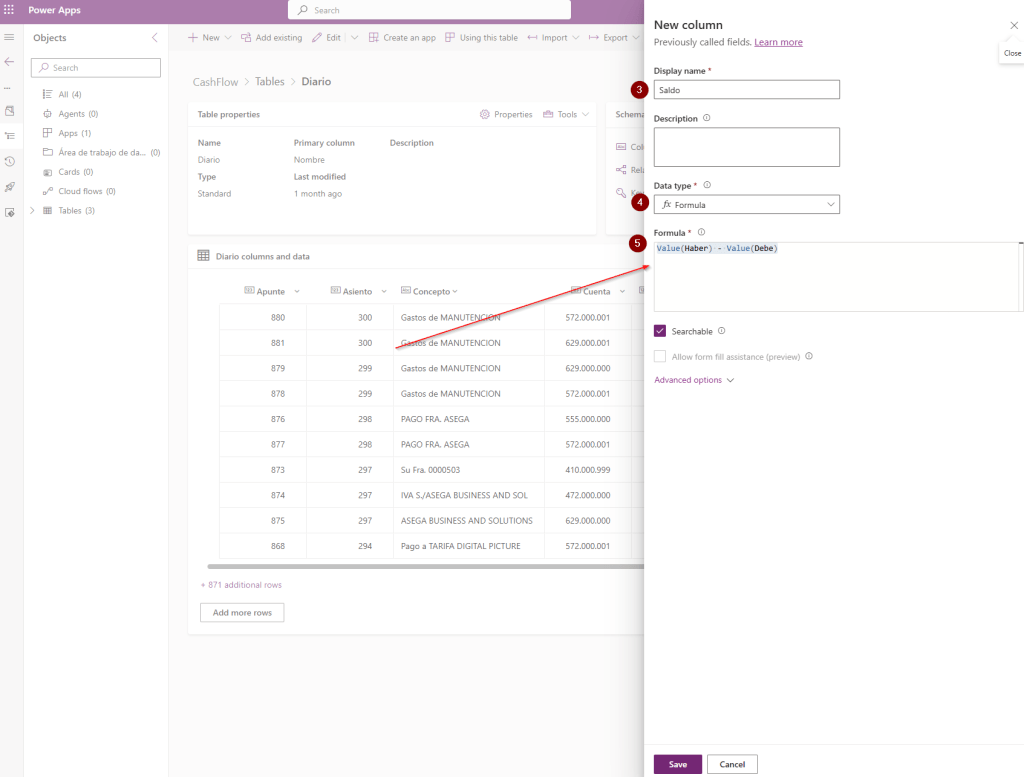
Value(Haber) - Value(Debe)4. Save and publish your changes
Click Save to store the formula.
Publish the changes to the table.
Once published, the new column will be available in Power BI.
You’ll notice that your new column is calculated immediately and ready to use:

What now?
Once created, this column behaves like any other field in your reports. In Power BI (whether using DirectQuery or Import mode), you can use it in filters, visuals, and slicers without worrying about the computational cost of an equivalent DAX measure.
In conclusion…
Sometimes, improving Power BI performance does not require magic formulas or heroic measures, it just takes moving the logic to the right place. And more often than not, that place is the data source.
Using formula columns in Dataverse not only simplifies your model, it also frees Power BI from unnecessary work—especially in DirectQuery scenarios, where every calculation matters. But this principle goes beyond Power Fx or Power BI: whether it’s with formulas in the source or with the overall architectural design of your solution (regardless of the technology), making smart decisions early on often makes the difference between a system that flows and one that gets stuck.
It’s not about doing less, it is about doing it better. So next time your visual is taking a little too long to load, remember this mantra: transform at the source and let Power BI do what it does best.


 🚀Power Tower
Leave a comment