In most modern mobile applications, the same button can perform different actions depending on how it’s pressed:
- Quick tap: immediate action
- Long press: advanced or secondary action
This interaction pattern is very common and significantly improves the user experience:
- It allows you to reduce the number of buttons on the screen
- It makes interfaces cleaner and more intuitive
- It gives users the option to choose between a quick or a more detailed action without having to navigate through multiple screens.
In Power Apps, by default, a button executes its logic when the user taps it. There isn’t a native property to distinguish between a “short tap” and a “long press,” nor are there properties like OnPressDown or OnPressUp. But… by combining the Pressed property with a Timer, we can recreate that exact behavior.
Practical Scenario: Inventory Control
Imagine an inventory app used by warehouse operators. Every time products are received, the stock needs to be updated in real time:
- If individual units arrive, it makes sense to press the “+” button to quickly add one item.
- But if a large batch arrives, having to press the button 50 times isn’t practical. In that case, the ideal solution is for a long press to trigger a pop-up that allows the user to manually enter the quantity to add.
With a bit of logic in Power Fx, we can make a single button behave in two different ways—without external connectors or complex components.
In this post, I’ll show you step by step how to implement it:
Step 1: Create the global variables
You can initialize them in App.OnStart, although I personally prefer initializing them in the OnVisible property of the screen:
Set(_LongPressing_, false);
Set(_SeePopUp_, false);
Set(varStock, 0);_LongPressing_: this will be our “flag” to indicate whether the press has exceeded the threshold we consider a “long” press._SeePopUp_: controls the visibility of the popup that will appear when the button is held down.varStock: represents the current stock, allowing us to quickly add units with a single tap.
Step 2: Configure the button
The OnSelect property of the button is triggered when the user finishes pressing the button, not when they start.
For this reason, we’ll set the following formula in the OnSelect property:
If(
    _LongPressing_,
    Set(_SeePopUp_, true),
    Set(varStock, varStock + 1)
)
When the button is released, the current value of _LongPressing_ is evaluated:
- If
_LongPressing_is true: it means the user held the button longer than the defined threshold, so we display the popup. - If it’s false: it was a short press, and we simply increment the stock.
Here, we don’t need to manually measure time — we simply rely on the flag controlled by the timer.
Step 3: Configure the Timer
First, we’ll set up some basic Timer properties so it behaves exactly the way we need:
| Property | Value | Explanation |
|---|---|---|
Duration | 500 | Threshold time in milliseconds to consider it a long press. |
Start | Button1.Pressed | The timer starts counting when the button is pressed. |
Reset | !Button1.Pressed | The timer automatically resets when the button is released. |
Repeat | false | ElThe timer will not repeat; it only runs once. |
AutoStart | false | It only starts when Start = true. |
AutoPause | false | Prevents unexpected pauses on touch devices. |
- When the button is pressed,
Button1.Pressedswitches to true, which causes the Timer to start. - If the button is held down long enough (more than 500 ms), the Timer reaches its end and triggers OnTimerEnd.
- If it’s released earlier, the Timer automatically resets and never completes its duration.
This way, we’re not measuring time directly — we simply detect whether the Timer reached the end or not.
Step 4: Timer event logic
Now we’ll add some additional logic to the Timer so the button behaves exactly the way we want:
OnTimerStart:
Set(_LongPressing_, false)Each time a press begins, we make sure that _LongPressing_ is reset to false. This is important to prevent the state from getting stuck from a previous press.
OnTimerEnd:
Set(_LongPressing_, true);
Set(_SeePopUp_, true)
If the Timer completes its duration, it means the press was long enough, so we set _LongPressing_ to true.
In this case, we also open the popup directly (although this is optional — if you prefer, you can remove this line and let the popup open in the button’s OnSelect). Personally, I prefer opening the popup even if the user hasn’t released the button yet.
If the button is released before the 500 ms mark, OnTimerEnd doesn’t execute, so _LongPressing_ remains false and the short press action will run.
Final result
Short tap:
| User action | Result |
|---|---|
| Short press (less than 0.5 s) | Stock increases by 1 |
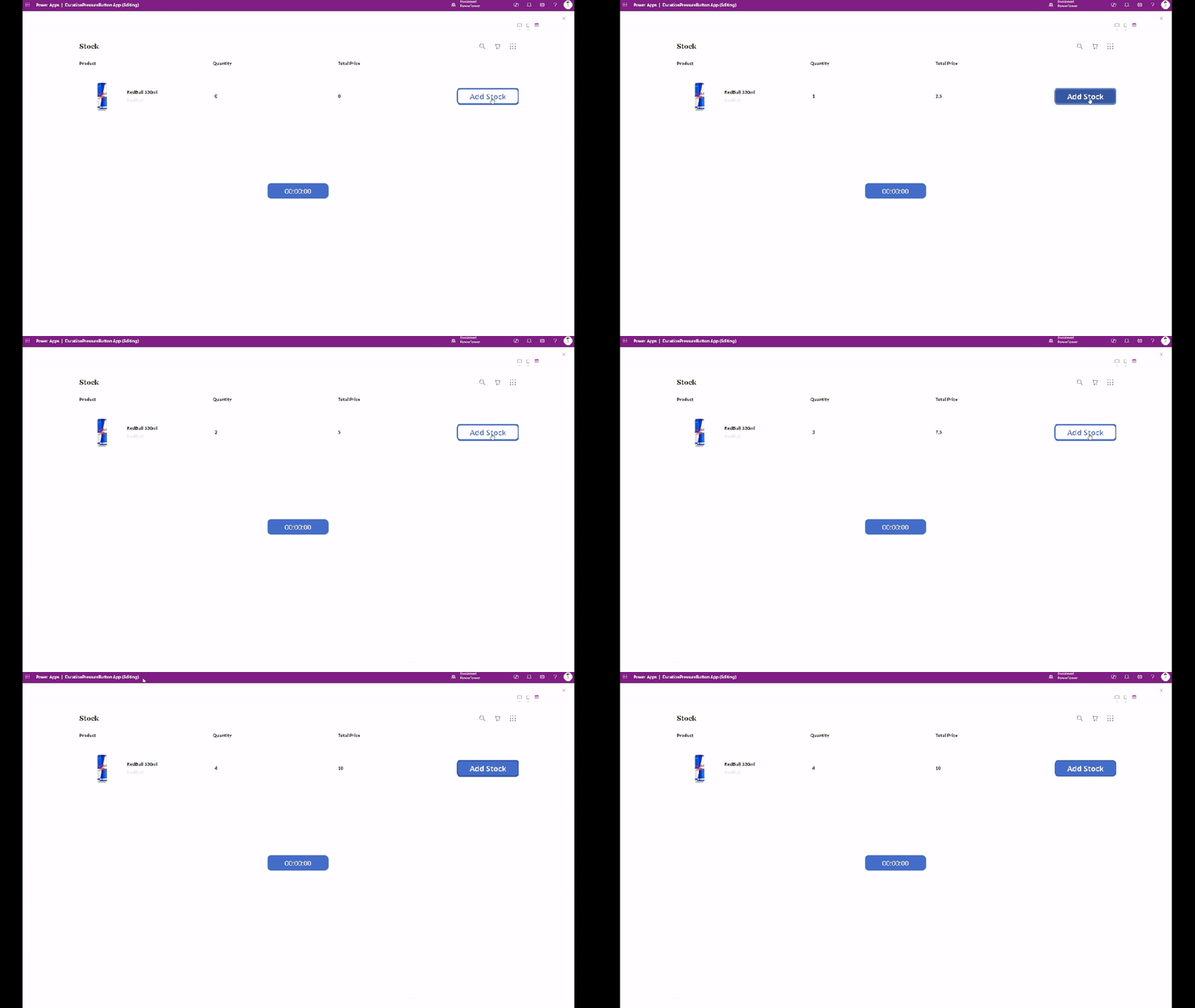
Long press:
| User action | Result |
|---|---|
| Long press (> 0.5 s) | The popup opens to enter a manual quantity |
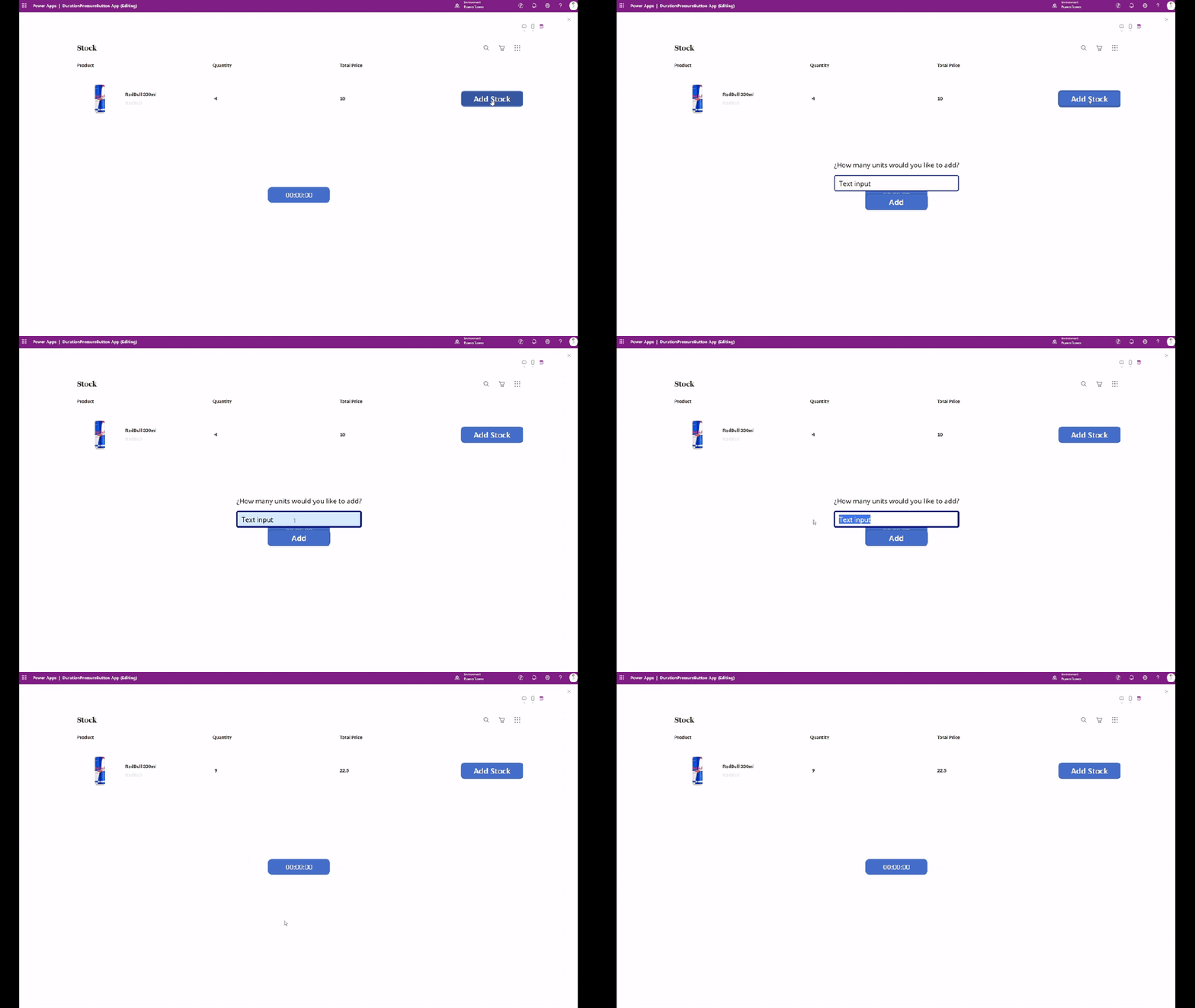
Conclusion
This pattern based on short press vs. long press shows how, with just a few controls and a bit of logic, you can create advanced and smooth interactions in Power Apps.
Although the platform doesn’t natively include events like OnPressDown or OnPressUp, combining the Pressed property with a Timer allows us to replicate that behavior in a reliable and simple way. With this technique, we’re not manually measuring milliseconds or writing complicated logic—we’re simply setting a time threshold that lets us distinguish between a quick tap and an intentional press.
This solution turns a simple button into a smart, contextual interaction, aligned with the usability standards we see in the best mobile apps. And the best part: no connectors, no custom components, and no external code.


 🚀Power Tower
Leave a comment